
I am a bit of a stats nut. If not interrupted I can play with stats forever. I wrote this guide for people less obsessed with numbers and stats. Here’s a step-by-step guide to creating Google Analytics segment for social media. The Google Analytics social media segment will help you get a better understanding of the value of your social media efforts. (Images are scaled down so click on them to get a better view).
Creating a Google Analytics social media segment
Google Analytics has a feature called Advanced Segments. Advanced Segments let you define a custom segment of visits selected by the source.
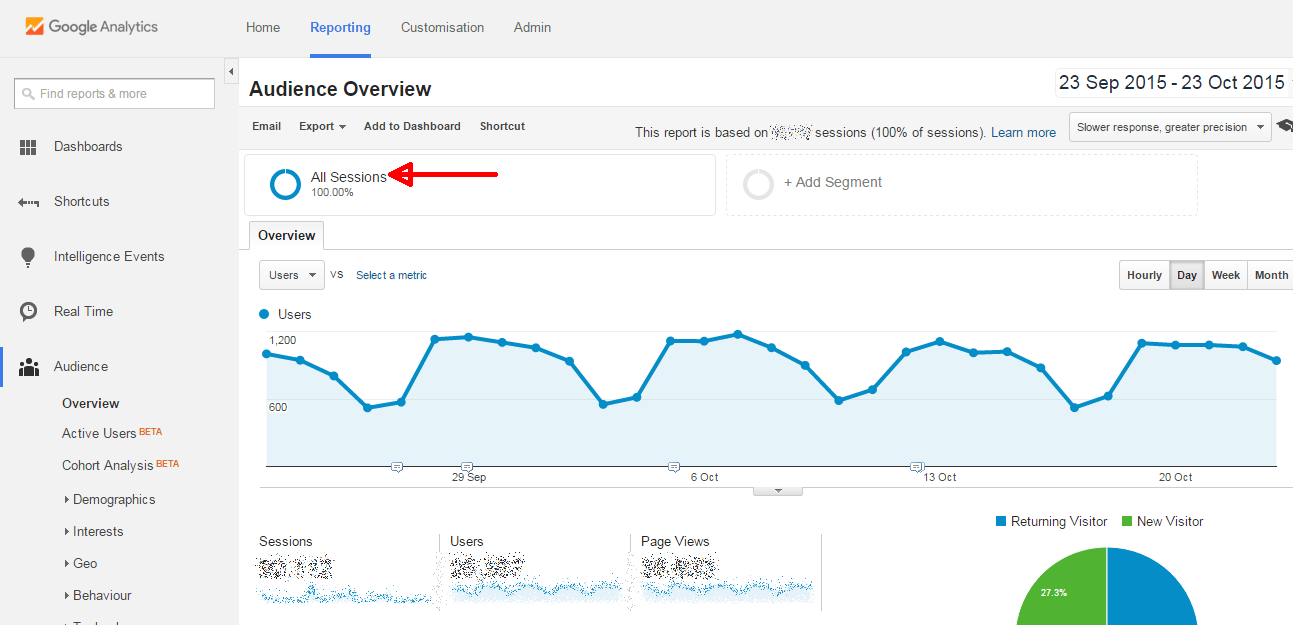
I will show you how to create a Google Analytics custom segment that tracks visitors from social media channels. First, click open the advanced segments and select +Add Segment.
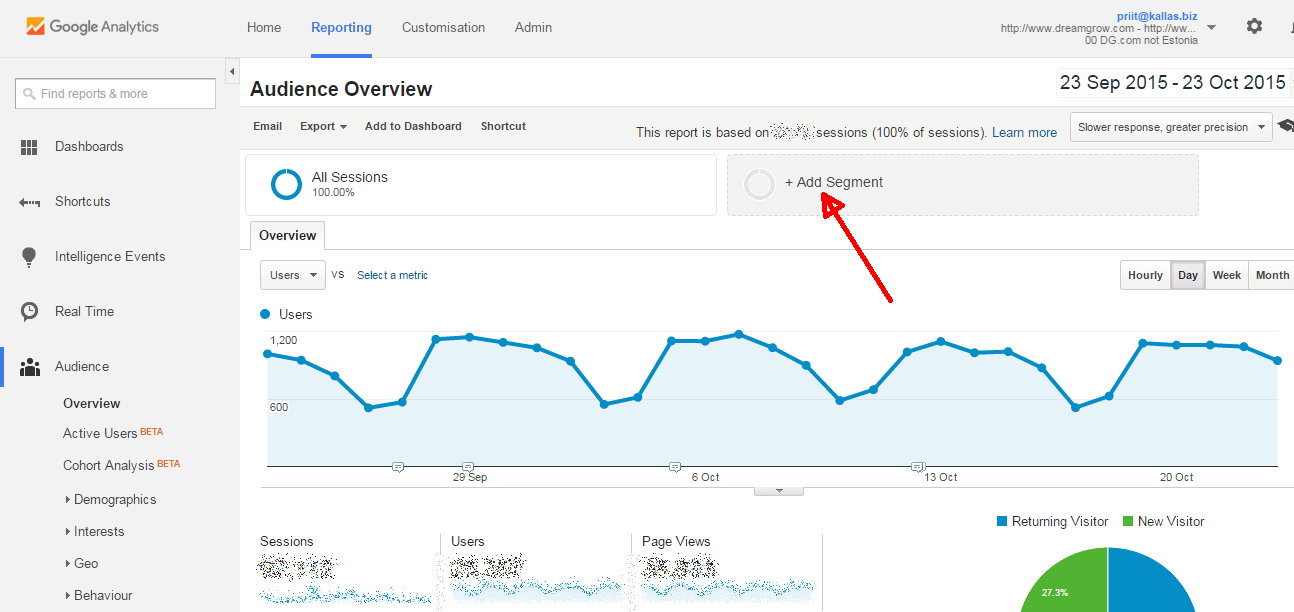
Now you will see a list of premade Google Analytics segments that help you to analyze different aspects of your traffic. You will also see a friendly big red +New Segment button.
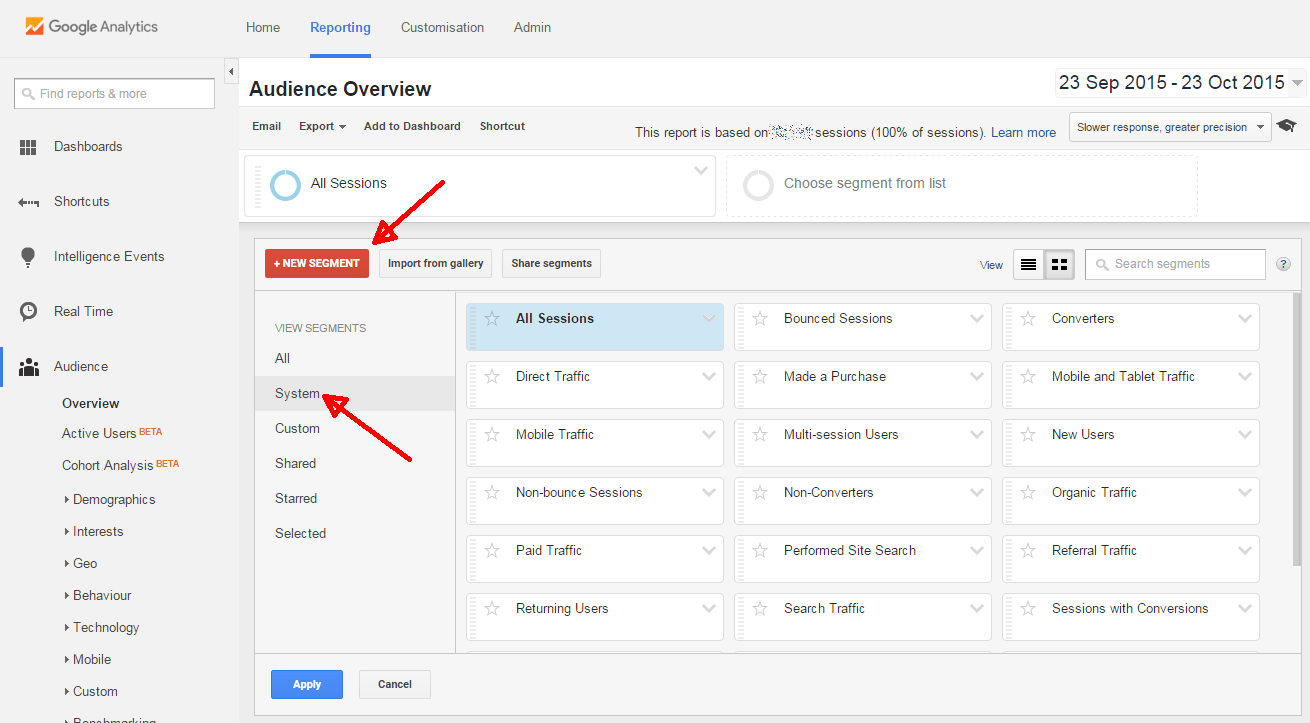
Click the friendly big red +New Segment button! The button takes you to a screen where you can select the parameters for your segment.

To select social media channels for your Google Analytics segment, you will
- Select the Conditions section from Advanced section.
- In the Conditions area select Source from the first drop down menu as the dimension you want to filter.
- From the second drop down select contains and
- in the text field type in the text that identifies one of your social channels. For example facebook.com.
- Now click“or” statement and repeat the steps 2 to 4 until you have all your social sources covered.
On the right side of the box you will see live update of the result of your segment as you add new conditions.
In the image below I have identified the most important social media channels, but you may want to add special channels that are relevant to you. For example industry forums and blogs or local social media networking sites in your country.

Select a name for your newly created Google Analytics segment, click save and you are done. The Google Analytics social media segment will be available to use in all the reports and lets you better understand how the visitors from social channels behave on your site. Some useful examples for the segment include:
- Goals from social sources
- Ecommerce Revenue from social sources
- Differences between social and other segments
You can add sources with “or”-statement and get a very long list. It will work just fine. However, if you want to show off your h4x0r skills, then you can create the same segment using just one line. And here's how you do it.
- Select the Conditions section from Advanced section.
- In the Conditions area select Source from the first drop down menu as the dimension you want to filter.
- From the second drop down select matches regex and
- in the text field copy and paste the following (no spaces): facebook\.com|quora\.com|reddit\.com|imgur\.com|tapiture\.com|disqus\.com|9gag\.com|tumblr\.com|plus\.google|twitter\.com|linkedin|del\.icio\.us|delicious\.com|technorati|digg\.com|hootsuite|stumbleupon|myspace|bit\.ly|tr\.im|tinyurl|ow\.ly|reddit|youtube|flickr|pinterest\.com|^t\.co$|tweetdeck|instagram\.com
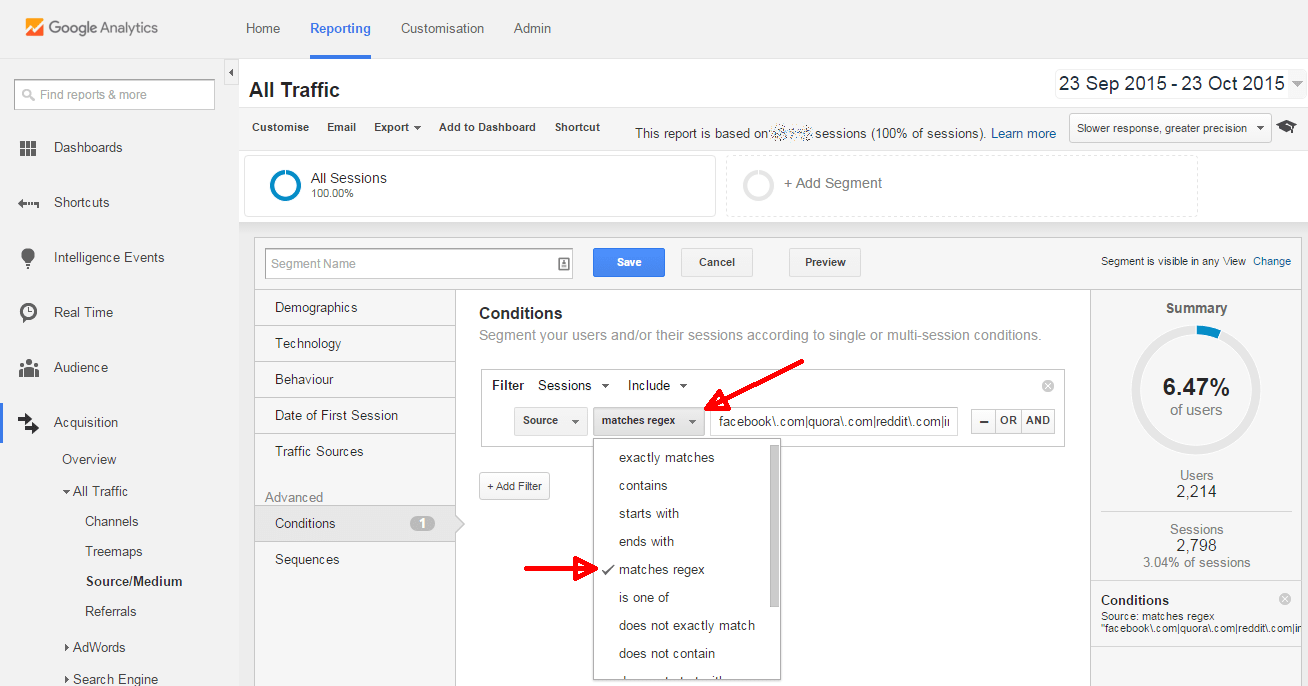
Regex is a way of creating complex rules to be passed to the system. What we did, in this case, is adding a lot of sources in one statement separated with ORs. What the parts mean:
- facebook\.com – \ tells the system to treat the dot literally as a dot, otherwise it would match almost any character.
- youtube|flickr – | means OR in regex.
- ^t\.co$ – ^ tells the system the the match should be in the beginning.
- ^t\.co$ – $ tells the system the the match should be at the end.
Now you are on the guru level! You can build your segments with ORs or regex (more about regex) but here's a link that will copy this advanced segment directly into your Google Analytics account.
If you have more than one Google Analytics account, then your segments will be visible by default on all accounts with your login. You can also share your segments with others as you can see in the link above. Another useful thing about segments is that you can use any segment in Google Adwords remarketing with Build Audience option.
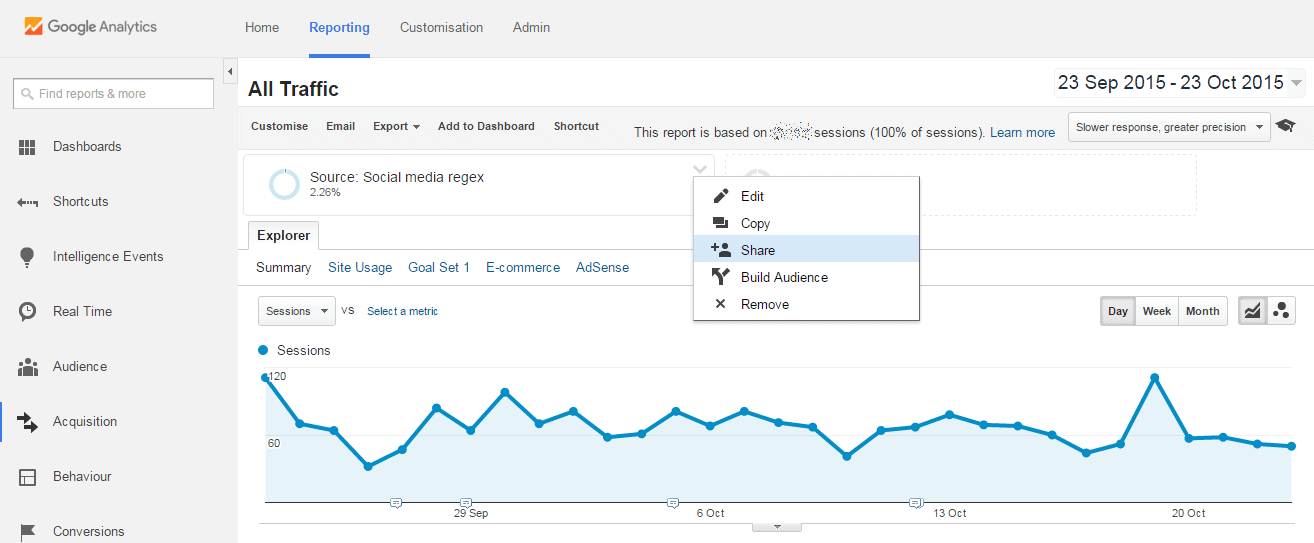
Later when you want to apply the segment to your statistics, you can select it from any page within Google Analytics by clicking on the +Add Segment area on top of reports.
You can select several segments at once and compare the performance as shown in this image.
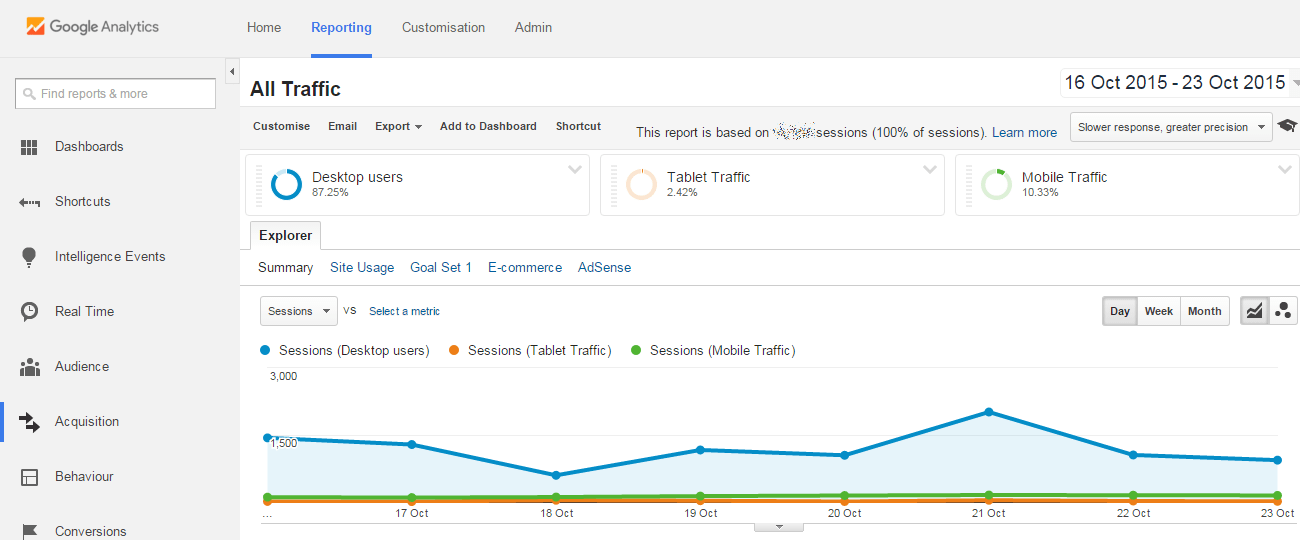
Comparing visitor numbers is a good indication if your efforts are bearing fruit in general. But to get more insight out of these reports you should analyze how are social media visitors interacting with your site and converting to goals.
Some people haven't set up goals in their Google Analytics; they should go here How to Setup Goals in Google Analytics and follow instructions. But you can go to your Goal section and see how your social media visitors convert compared to your average visitor.
On the next image, you can see that Dreamgrow website gets 28.28 percent of its conversions from social media channels. Well… this is great as the percent of traffic from social channels is lower than that. The numbers reflect the conversion rate that is higher for the visitors from social media. (This is a historical example, current numbers are a different and social media has lost a bit of ground).
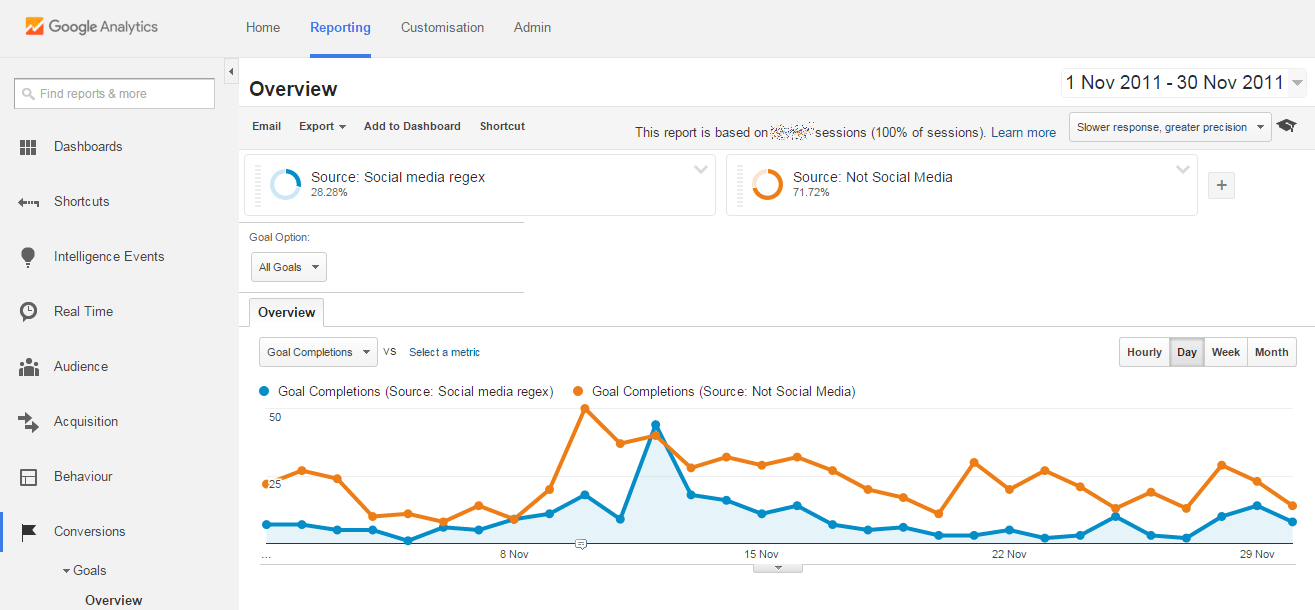
The most important question in analytics is So what? and the conclusion from this example is that social media works in getting the goals we need. There are a lot of ways you can play around with this segment, but for us, the next question is how do we get more visitors from social media channels to our site? For that:
- select only your Social media segment and
- go Content part of Google Analytics.
- Select Top Landing Pages.
This report will show you the main entry points for visitors from social media. We can say that these are the pieces of content that have the most potential to spread. Create more similar content, repost old content, create videos or slideshows of the popular material.
Next: Tag your links in social media
Make sure you track all your sharing in Google Analytics. If you don’t tag your links, you will lose some of the data. You will see direct traffic and now way of attributing it to your marketing efforts.
When you look at your Google Analytics, then you will see that there are 6 lines for Facebook. If you tag your links for Facebook, then there may be even more. Here’s how you can make sense of this mess.
Use different UTM tags to mark your various social media activities. There are 3 main ways people can end up on your page and make a mark in Google Analytics:
You share something on social media
Always tag the links you share with a specific tag so that you can distinguish the traffic that results from your sharing activities. For example in the case of Facebook your sharing tag could have parameters as follows:
- utm_source=twitter
- utm_medium=social
- utm_campaign=companysharing
Replace companysharing with something unique to your brant. For example, we could use dreamgwodsharing or dgshare. Unique campaign tag will let us always analyze the impact of our efforts.
There’s also the utm_content tag, but you know that’s the content by looking at the landing page report or adding landing pages as a secondary dimension in Google Analytics. Sometimes you can use the utm_content tag for testing different creatives.
You advertise something on your social media channels
Now, let’s say you create a Facebook ad. Make sure that you tag all the links you use in your advertising. In the case of ads, you are paying money, and you need to track the results. If you don’t tag the links in the ads, you can lose a ton of data, and your results will be worse than they actually are.
Here’s an example of tags that you could use for your Facebook ads:
- utm_source=facebook
- utm_medium=cpc
- utm_campaign=companysharing
Notice that I have used CPC in the medium tag. CPC is a standard tag in Google Analytics and helps to sort your ad traffic into the paid category.
Your readers are sharing your content
You made it! You have created something that your audience wants to share! Congrats!
But wait! How do you know that these shares generate traffic to your site?
Well, if you don’t tag your sharing links, then you have no way of telling if the sharing buttons on your site generate any meaningful traffic.
Here’s is what you need to do!
Tag the links that the sharing buttons use with specific tags that you can later analyze. You could use tags like this example:
- utm_source=facebook
- utm_medium=social
- utm_campaign=readerssharing
Replace the readerssharing tag with something unique to your business. For example, we here at Dreamgrow use Mashshare buttons for Facebook, and it has a built-in Google Analytics tag as follows.
- utm_source=sharebuttons
- utm_medium=facebook
- utm_campaign=mashshare
When we get to it, we plan to change that to:
- utm_source=facebook
- utm_medium=social
- utm_campaign=dgreaders
These tags will better match our general tagging strategy and make more sense in our Google Analytics. In the grand scheme of things, it doesn’t matter what the tags are as long as you know what they mean.
Make sure you use a similar tagging strategy for “tweet this” buttons and on image sharing features you might have on your site.
I hope this helps you to get more insight out of your social media marketing program and one step closer to that all-important social media ROI.
Read the related post HOW-TO: Tag Social Media Links for Google Analytics.